


We got the question if and how defragmentation is possible under Windows 10. So today we’ll show you how this works under Windows 10 and what you need to keep in mind.
Type of storage tank
Before we start, it is extremely important to find out what type of data storage is built into your computer or laptop. Defragmentation is not always necessary, sometimes it would be very harmful.Luckily, Windows 10 supports all typical memory types. Typical forms of storage are conventional hard disks (HDD), which store the data on a magnetic disk. More expensive and newer computers often use flash memory (SSD). These store data electronically.
For SSDs, defragmentation is not necessary because it does not matter where the data is stored on the storage medium. Access is always equally fast.Older versions of Windows 7 do not know this memory type. Therefore, the system often defragments the memory. This can cause the SSD to age much faster than it would if you weren’t constantly storing data back and forth on the SSD. Therefore, you should always install all the latest updates and service packages under Windows 7.
Under Windows 10, however, you usually don’t have to pay attention to such trivialities. Within the application responsible for defragmenting, the memory type is displayed correctly.
Defragmentation under Windows 10
Let’s switch to this application first. Open your file explorer and go to „This PC“. Here you will be shown the hard disks and data storage devices that are connected to your PC. This can be a hard disk, but it can also be several different storage media.
Right click on one of the hard drives (which one you take is irrelevant) and click on „Properties“.
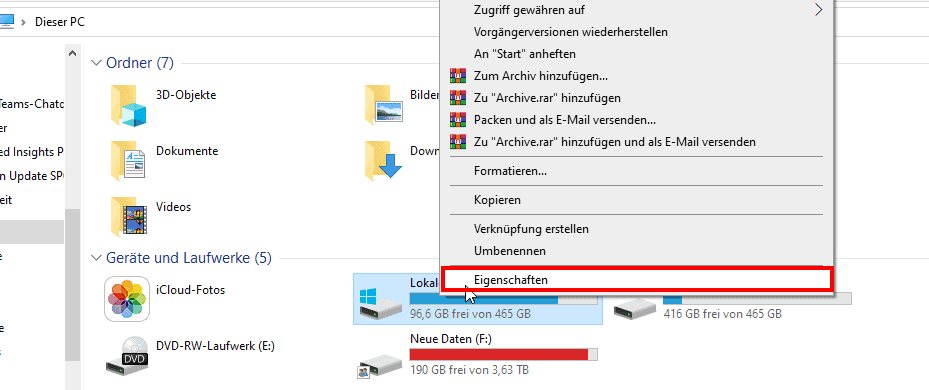
Switch to the „Tools“ tab and select „Optimize“.

The „Optimize drives“ application opens.
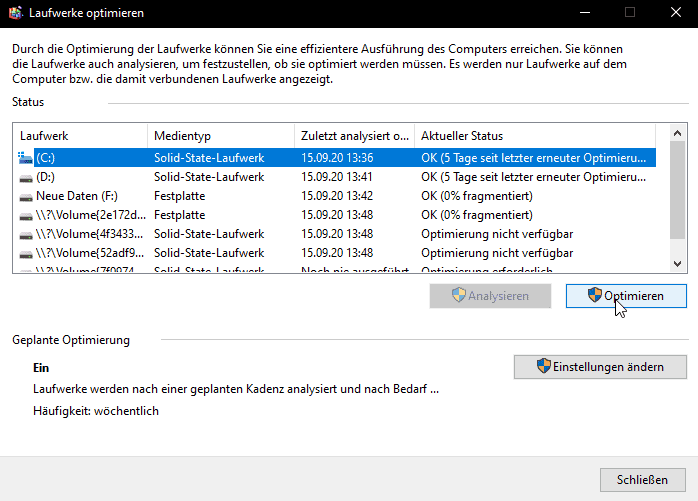
The column „Media type“ shows which hard disk technology is used in the respective case. With „Optimize“ you start a whole range of tools that are supposed to improve the operation of the respective hard disk or SSD. For HDDs, this is also where defragmentation is used. For SSDs, other methods are used to improve performance. So don’t worry, normally under Windows 10 it is not possible to defragment your SSD fatally.
Note that the optimization process may take quite a while. It should also be noted that Windows 10 by default regularly performs optimizations itself, so it is not mandatory to start this process manually.Keine Produkte gefunden.
Photo by Denny Müller on Unsplash
